 Neatkept
QR code labels for storage boxes: how they work, what to print, where to stick
You have a stack of storage boxes and keep opening the wrong one. A QR label turns "what's in here?" into one scan.
Updated
What a QR label actually does
A QR code is a square pattern that a phone camera reads as text. On a storage box, that text is usually not the list of contents. It is a short, unique code, or a link built from it, that points to the box's record: what is inside, where the box stands, when it was last moved.
That difference matters. A box's contents change, and a printed list goes stale the first time you take something out. A code never changes. You print it once, stick it once, and keep the list that it points to up to date. If you use a spreadsheet instead of an app, the same idea works: the label carries the code, the spreadsheet has a row per code.
Any QR generator can turn a code into a printable square, so the method works with nothing more than a printer and a spreadsheet. What matters is that every code is unique, printed once and never reused for a second box while the first one still exists.
What to print on each label
A good box label has three parts:
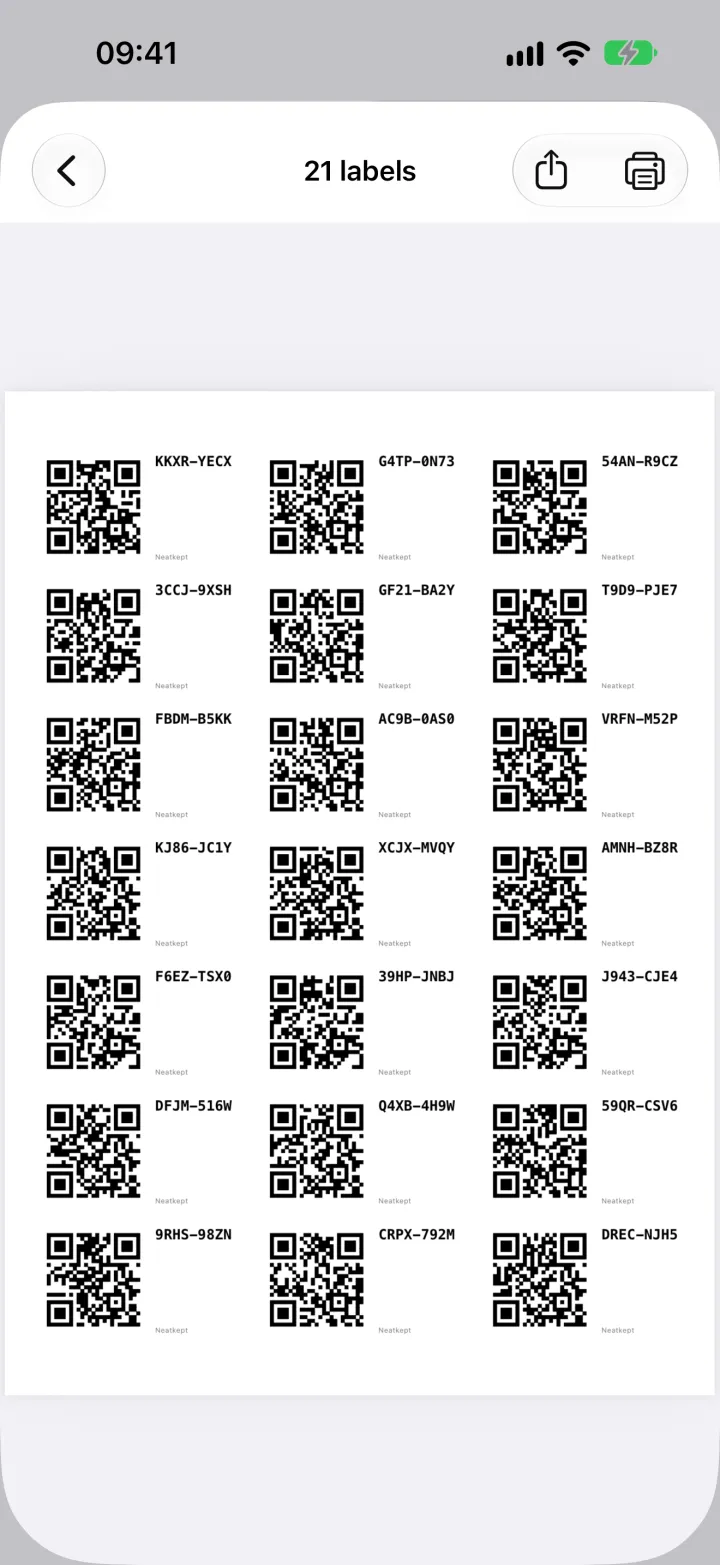
- The QR code, as large as the label allows. Bigger codes scan faster from further away and in worse light.
- The same code in letters, large enough to read from a step back. It is the backup when the camera struggles, and it lets someone without your phone find the box on your list.
- A name, if the box already has one. "Winter clothes" helps when you're scanning a row of boxes by eye. For labels printed before the boxes are filled, leave the name off.
Keep the code short and avoid characters that look alike. A code where O and 0, or I and 1, can be confused is a code someone will mistype in a cold garage.
Label size, paper and printing
Small labels work on a box you scan from close by. For boxes on a high shelf or at the back of a cupboard, choose bigger ones: a code a few centimetres across scans from arm's length in normal light. When in doubt, go one size up.
Use this checklist when you print:
- A4 sticker sheets that match your printer type (inkjet or laser)
- Matte labels if you can; gloss reflects light and can make scanning harder
- Print at 100% scale with "fit to page" switched off
- Test-scan one label from the first sheet before printing more
- On a half-used sheet, skip the slots already gone instead of wasting a page
- Waterproof or laminated labels, or clear tape over plain ones, for damp places like cellars and garages
- A few spare labels in the drawer for boxes you will buy later
Where to stick them
Stick the label on the side of the box that faces you when it stands on the shelf, usually a short end. Add a second one on the lid if boxes get stacked and you look at them from above. Avoid corners, folds and ridges: a QR code bent over an edge often won't scan.
Don't put the only label on a lid if the lids are interchangeable. Lids swap, boxes don't. On fabric or textured boxes, use a luggage tag or a small card tied on, since stickers peel off.
Label the shelves and zones as well, at the front edge where a scanner can see them. Then a move is two scans: the box, then where it now stands. That keeps the record right without anyone typing.
Keeping the records true
Labels only help if the record behind them is right. Two habits keep it that way. When you take something out of a box for good, update its list on the spot; a scan opens the record, so it takes seconds. When a box moves, record the move right away, not at the end of the day.
Once a year, open a few boxes at random and compare them with their records. If they match, the system is working. If they don't, it shows you which habit slipped.
Doing it with Neatkept
In Neatkept you open Places, choose Print labels, pick how many you need and your sticker sheet, and the app draws the A4 page for printing from the phone or as a PDF. Common Avery and Zweckform sheets are listed, plain paper works, and you can skip the labels already used on a sheet. Each label has a QR code and the code in letters. Scan a fresh one and Neatkept offers to make a box with it; scan it later and the box opens with everything inside. Shelves and zones can get labels too, so a move is two scans. The print labels page shows it step by step.
Questions and answers
Can a QR code hold the list of what's in the box?
It can hold a short text, but that text is fixed when you print it. The day you add or remove something, the label is wrong. A code that points to a list you can edit stays right for as long as the box exists.
Do I need a special printer?
No. Any home inkjet or laser printer can print QR codes on A4 sticker sheets. Print at 100% scale, not "fit to page", so the codes land on the stickers.
What if the label gets damaged?
A QR code still scans with some damage, but not with a lot. That is why every label should also carry a short code you can read and type. If the label is ruined, print a new one with the same code or type the code into whatever app or list you use.
Should shelves get labels too?
Yes, if boxes move between shelves. A label on the shelf lets you record a move by scanning the box and then the shelf, and it tells anyone putting a box back where it belongs.
Neatkept for this
Print labels for your boxes
You've bought a stack of storage boxes and want each one to say what's inside without opening it.
Boxes labelled with a marker
No printer, no stickers, just a marker. You write K01 on the box of kids' toys and still find out what's inside without opening it.
Labels and box codes
A QR label or a code written with a marker. Either one opens the box in Neatkept.
All your places
Every home you have, in one tree. Things sit in a box or right on a shelf, and each one has a full path.
Moves
Tell Neatkept where a box or a thing went, and its place is right for everyone in your household.